A ChatGPT Pet is an optional animated work companion. It can show that a conversation or task is working, waiting for a decision, finished or blocked. Most importantly, it changes the visual layer and how activity is tracked, not the model’s capabilities or answer quality.
Where to find the Pet on the web
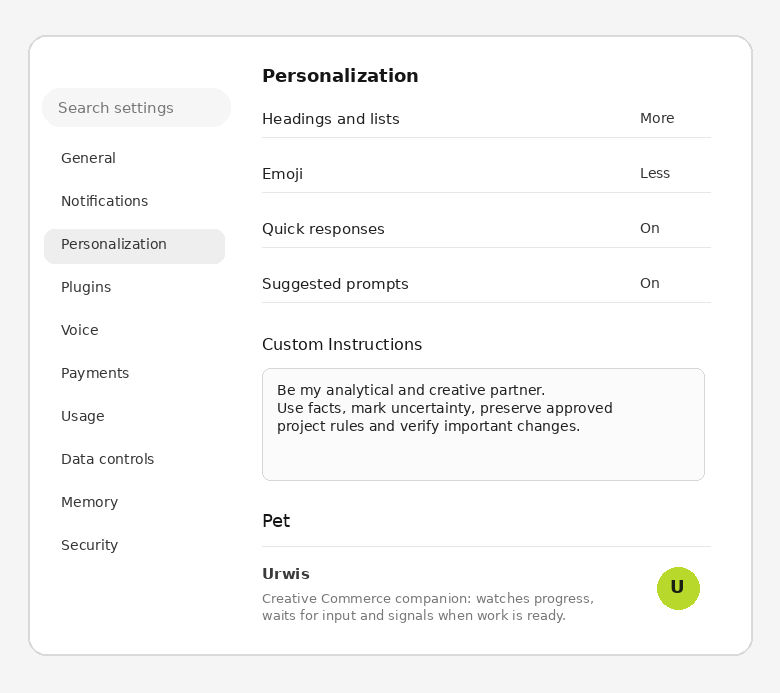
- Open the profile menu.
- Go to Personalization.
- Scroll to the Pet section.
- Choose an existing Pet or the option to upload your own, if it is available on your account.
What a Pet actually gives you
| State | What it means | Why it matters |
|---|---|---|
| Running | The conversation or task is actively working. | You can see that the process is still running. |
| Needs input | Chat needs your answer, approval or decision. | It is easier to notice that work has stopped and needs action. |
| Ready | The task finished and has unread activity. | A signal that the result is ready to review. |
| Blocked | The process hit an error or blocker. | You can see sooner that you need to return to the task. |
Web and desktop are not the same
If the feature is available, the path is Settings → Personalization → Pet. The Pet appears in supported Work conversations. The web version does not provide the desktop floating overlay or the /pet command.
In Settings → Pets you can choose a Pet, wake it with /pet and use it as a floating activity indicator.
In a supported terminal you can use /pets or /pet. This is a variant for people working in the terminal, not a normal website element.
How to create your own look
There are two practical routes. In the desktop app choose Settings → Pets → Create your own pet, describe the concept and refresh the Pet list when creation finishes. Custom Pets created on desktop are stored locally and do not automatically sync to the web.
How to design a good Pet
- One readable silhouette - it must still work at a small size.
- 2-4 distinctive features - for example ear shape, colour, glasses or scarf.
- No microtext - tiny lettering and logos will be unreadable.
- Stable character geometry - the working state should not look like a different character.
- Different emotions and motion - working, waiting, success and problems should differ through pose or expression.
- Transparent background - the Pet should work on both light and dark interfaces.
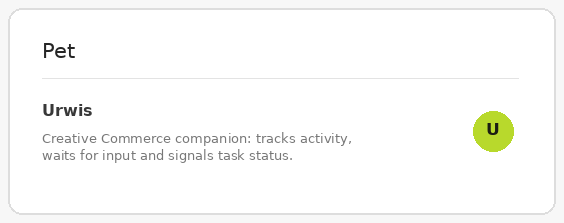
Our example: Urwis
For Creative Commerce, a Pet works better when it feels like part of the brand system rather than a random cartoon. A practical rule could be: a small clever dragon or a technological otter, dark body, lime brand accent, one distinctive feature and simple animations. The name, description and visual character should match the brand tone, but do not attribute capabilities to the Pet that it does not have.
Custom Pet: visual brief
Create a custom ChatGPT Pet named [NAME].
Species / form: [e.g. small dragon, otter, robot, fox].
Visual character: [clever, calm, technical, playful].
Silhouette: simple and readable at small size, no tiny text.
Palette: maximum 3-4 colours: [colours].
Distinctive element: [e.g. glasses, headphones, small bag, scarf].
Style: consistent, modern, lightly illustrative, without copying existing mascots or brands.
Design states that make it easy to recognise: working, waiting for a decision, task ready, error / blocked.
Do not change the main character features between states. Readable silhouette, expression and consistency are the priority.If you use Create your own pet in the desktop app, you describe the concept and the system guides the creation process. For manual web upload, prepare a compatible sprite sheet that meets ChatGPT requirements.
What to expect after creation
This is normal. Where it appears depends on the surface, app version, account and workspace.
That is expected. A Pet does not control model intelligence or response style. Use Personality, Traits and Custom Instructions for style.
With the system “reduced motion” setting, ChatGPT may use a static frame instead of animation.
Documentation indicates that custom Pets created in the desktop app are stored locally and do not automatically sync to the web.
Official instructions and settings
Pets can differ by account, workspace, platform and rollout stage. First check which options are actually visible in your interface.